
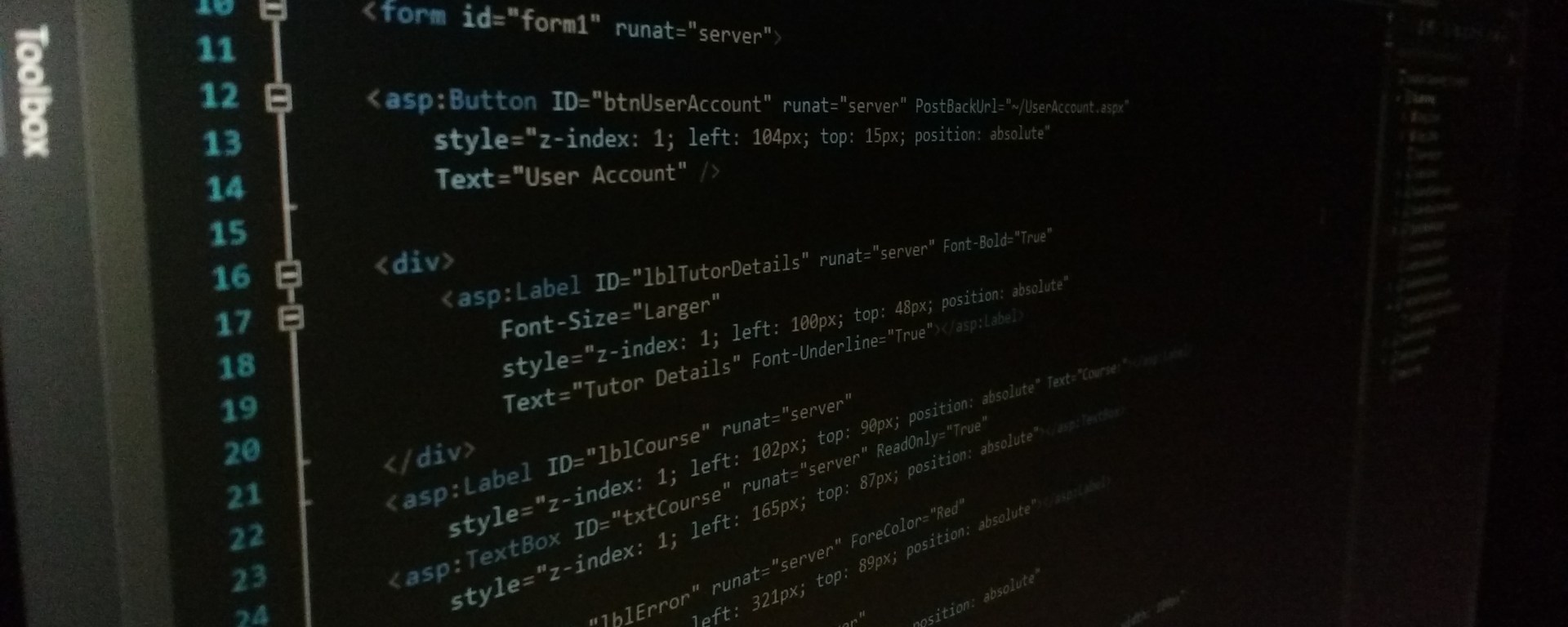
- This is a basic Website I made it with ASP.NET Technology.
- This System is a simplified version of the Student Management System (E-learning System) I build in C# ASP.NET (Front-End) in Three-tier Architecture (Multi-tier), and MS – SQL Server (Back-End).
- This System is in very Understandable format, in which anyone can understand how this system works.
- There are main two entities in this System Student and Tutor.
- This System is very useful to those people who are newbies with C# language.
- I describe all the information in this article with images.
- This Project is available on GitHub.
List of Forms & Classes I made in this System
- Table Data (Students)
- Table Data (Tutors)
- UserLogin.aspx
- Logout.aspx
- StudentDetails.aspx
- TutorDetails.aspx
- StudentAccount.aspx
- TutorAccount.aspx
- StudentRegistration.aspx
- UpdatePassword.aspx
- UpdateTutorCourse.aspx
#1. Table Data (Students)
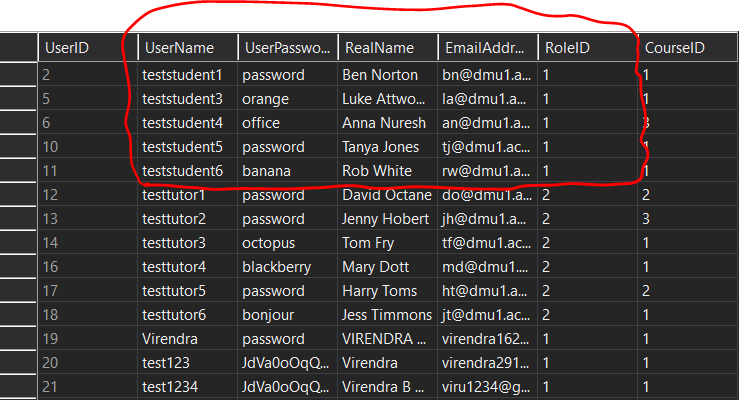
Table 1: Table Data (Students Highlighted)
- This table above Shows the data already in this project.
- The highlighted area shows students in the database.
#2. Table Data (Tutor)
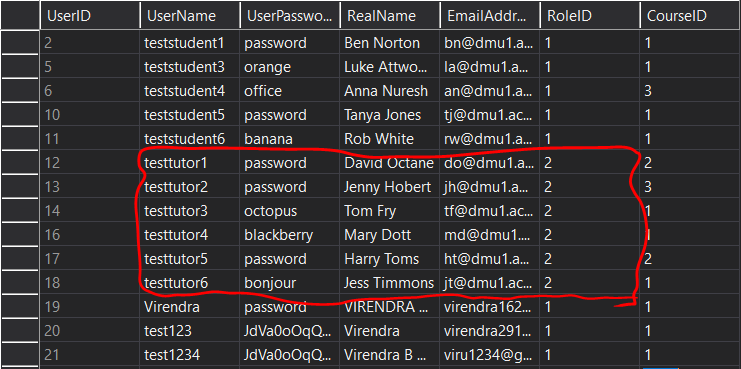
Table 2: Table Data (Tutors Highlighted)
- In this table, the highlighted area shows tutors in the database.
#3. UserLogin.aspx
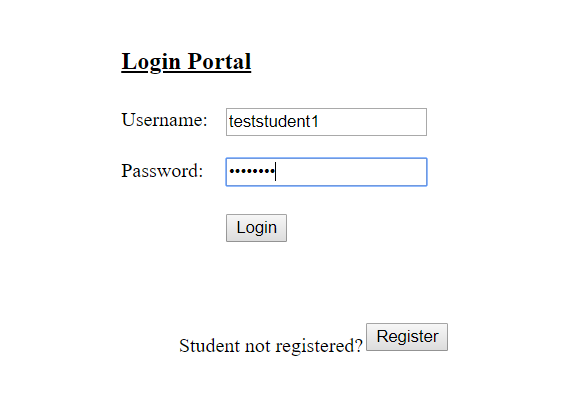
Figure 1: Login Form
- This above login form contains student credentials.
- In this form, the user can log in as a student or tutor.
#4. Logout.aspx
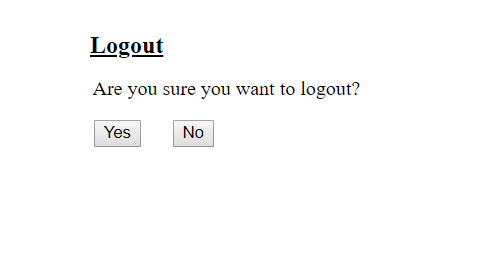
Figure 2: Logout Form
- This above logout form asks the user to they sure want to log out.
#5. StudentDetails.aspx

Figure 3: Student Details
- This student details form only seen by the user who logs in as a student.
- This form gives information about student course, tutor on the course and modules covers in the course.
#6. TutorDetails.aspx
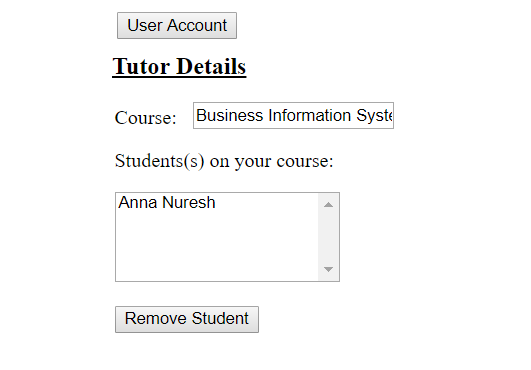
Figure 4: Tutor Details
- These tutor details form only seen by the user who logs in as a tutor.
- This form gives information of course, which course they taught and the list of students in that course.
#7. StudentAccount.aspx
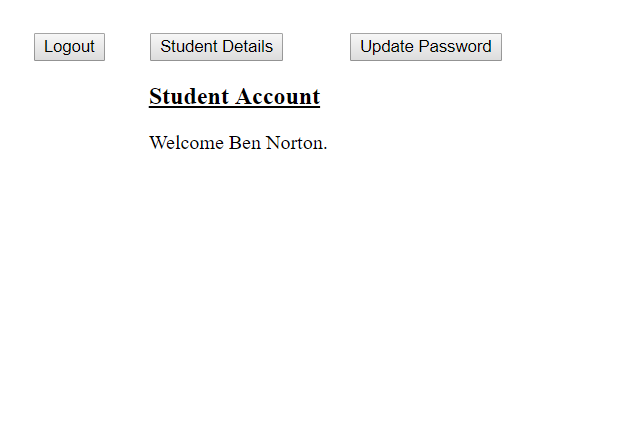
Figure 5: Student Account
- This screen comes up when user login as a student.
- If user login as a student they can see their details and update their password.
#8. TutorAccount.aspx
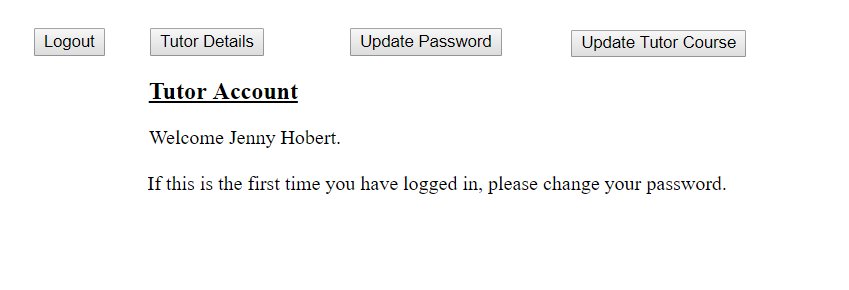
Figure 6: Tutor Account
- This screen comes up when user login as a tutor.
- If user login as a tutor they can see their details, update their password and update their course as well.
#9. StudentRegistration.aspx

Figure – 7: Student Registration Form
- This registration form allows the user to register as a student by default as per given requirment.
#10. UpdatePassword.aspx
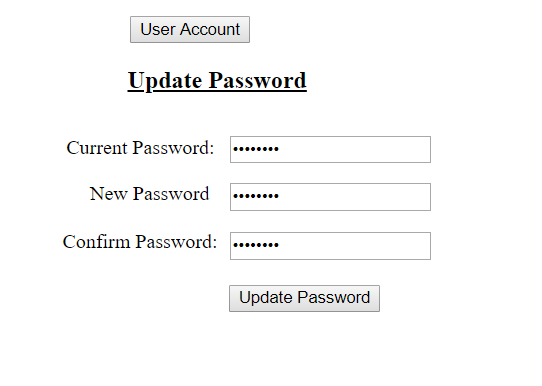
Figure 8: Update Password
- This form allows the user to update their password from their database.
#11. UpdateTutorCourse.aspx
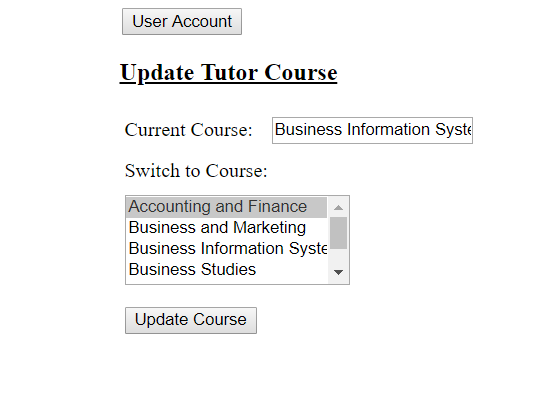
Figure 9: Update Tutor Course
- This form allows the tutor to update their course directly from their account.
 Virendra's - Tech Blog
Can you please provide me the database file of this program.
LikeLike